Behavior GUI
The Behavior GUI is a standalone visual interface for configuring and testing the device without using Bonsai.
Before beginning, install the GUI, follow the hardware setup guide, and connect the USB cable to the computer. Launch "Harp.Behavior.App" from the Windows Start menu.
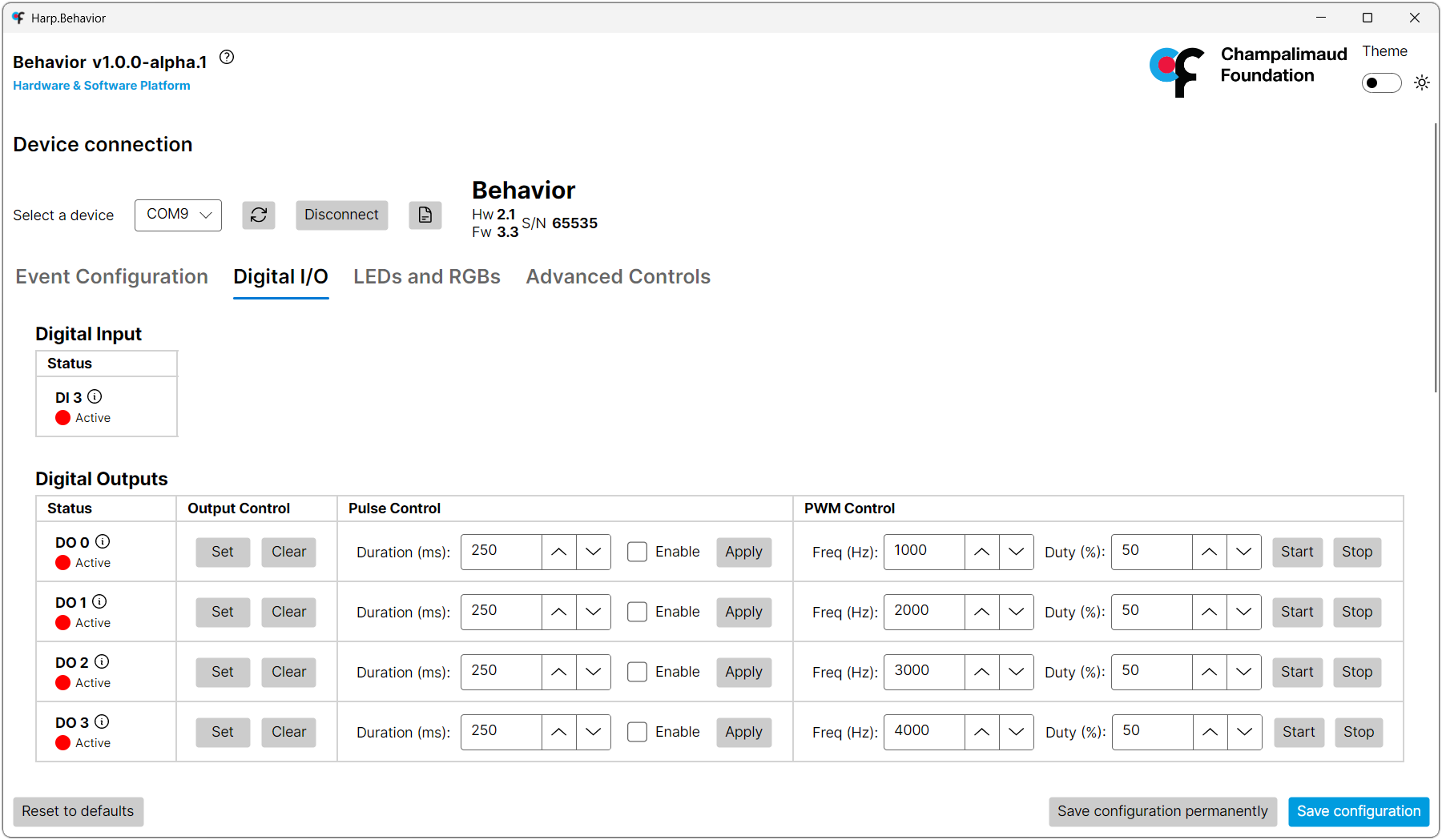
- Select the port for the device, and press "Connect". The device details will display on the right side if it is successfully connected.
- Select the tab for the register group that you want to control.
- Change the values to test outputs, LEDs, cameras, and servos, and observe the output on the connected peripherals.
Warning
Only one program can access the device's COM port at a time. Close the GUI before starting a Bonsai workflow that uses the device.
Last updated with:
Hardware v2.1
Firmware v3.3
Bonsai Package v0.2